

To track website events and conversions using the Meta Pixel, you first need to create a dataset in Meta Events Manager, then install the Pixel code on your OpoShop. Follow the steps below to complete the setup.
Step 1: Create a Meta Pixel
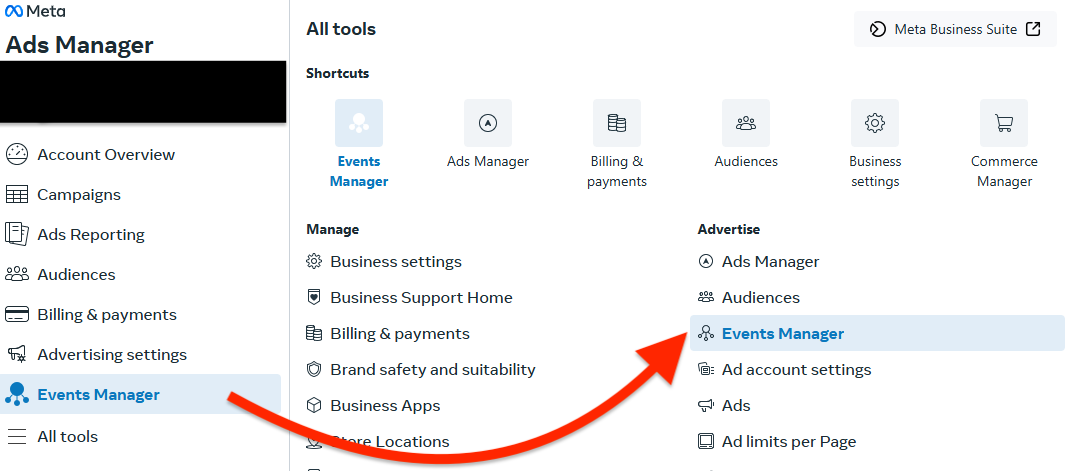
Open Meta Events Manager.
Select your Business Account from the top-left dropdown menu (if it isn’t already selected).
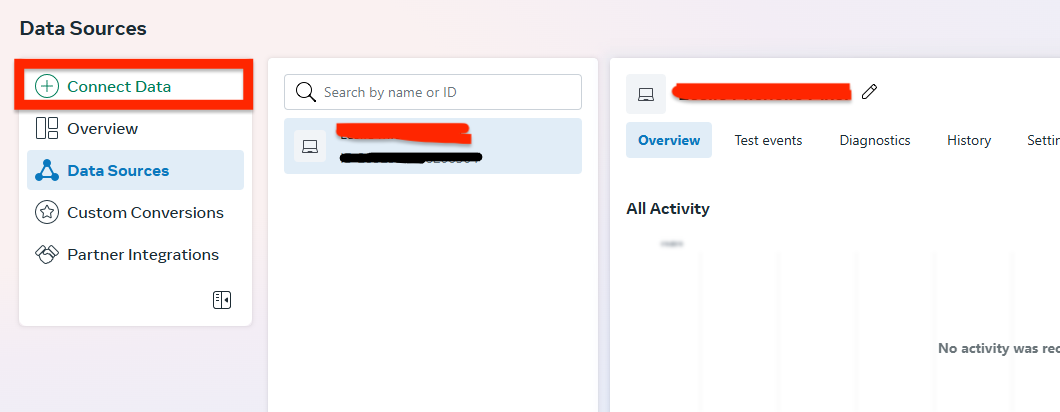
Click the green “+” button or select Connect Data Sources.
Choose Web as your data source.
Click Connect.
Enter a name for your Pixel and follow the on-screen prompts to complete the setup.
Step 2: Get the Pixel Code
Once your Pixel is created:
Select Install Code Manually.
Copy the full Pixel base code shown.
Step 3: Add the Pixel to Your OpoShop
Go to your OpoShop dashboard.
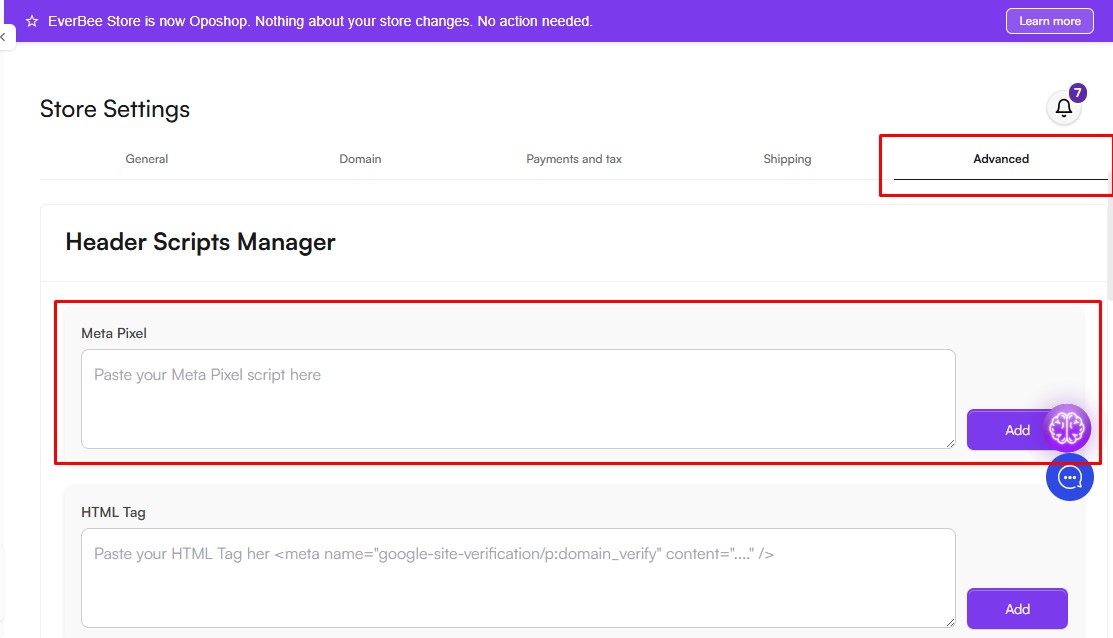
Click on Store Settings.
Go to the Advanced tab, where you’ll find the Head Scripts Manager.
Paste your Meta Pixel code into the Header section.
Click the Add button to apply and save your changes.
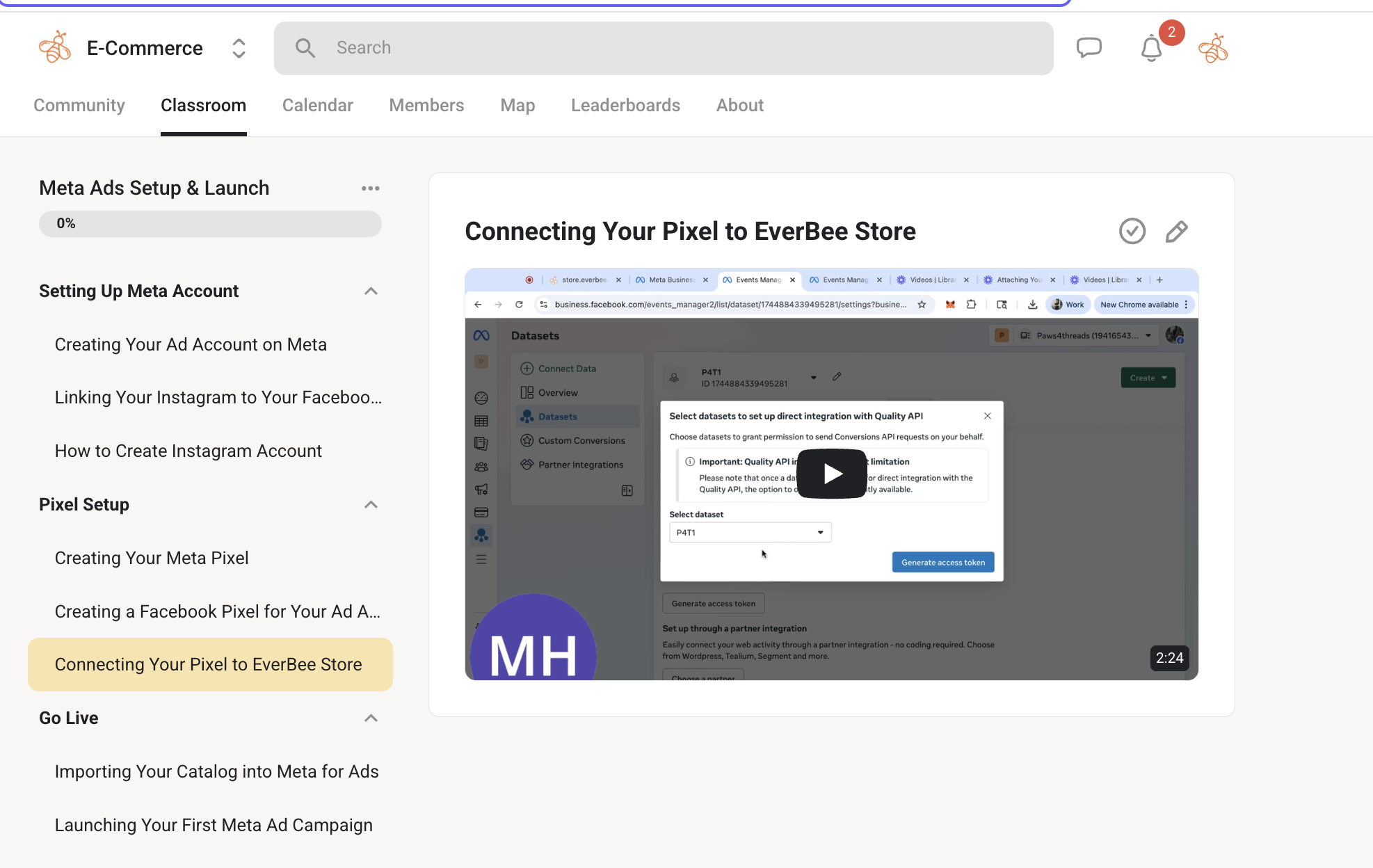
Need a walkthrough?
- Join our private e-commerce community for full guidance and access to our complete module on getting started with Meta Ads.
Adding your Meta Pixel enables you to track visitor activity on your store and optimize your ad campaigns for better performance.
If you need any assistance during setup, feel free to reach out at hello@everbee.io. We’re here to help.