

The Product Reviews feature allows customers to leave feedback on your products, helping you build trust, strengthen your brand, and encourage future purchases.
This article explains how to manage product reviews from your OpoShop dashboard and how customers can submit reviews.
Admin Overview
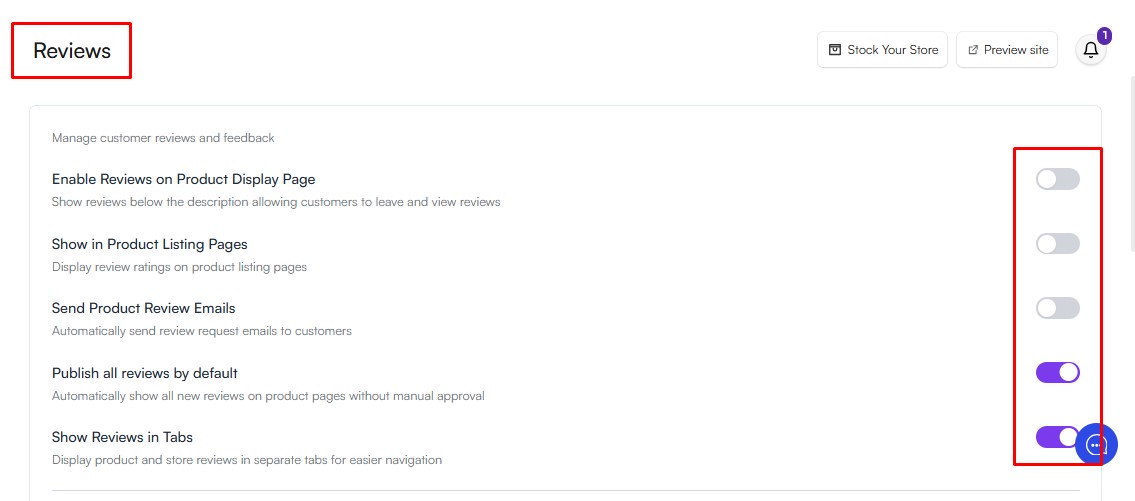
To manage your product reviews, go to Products > Reviews in your OpoShop dashboard.
From the Reviews tab, you can view and manage all reviews submitted for your store's products.
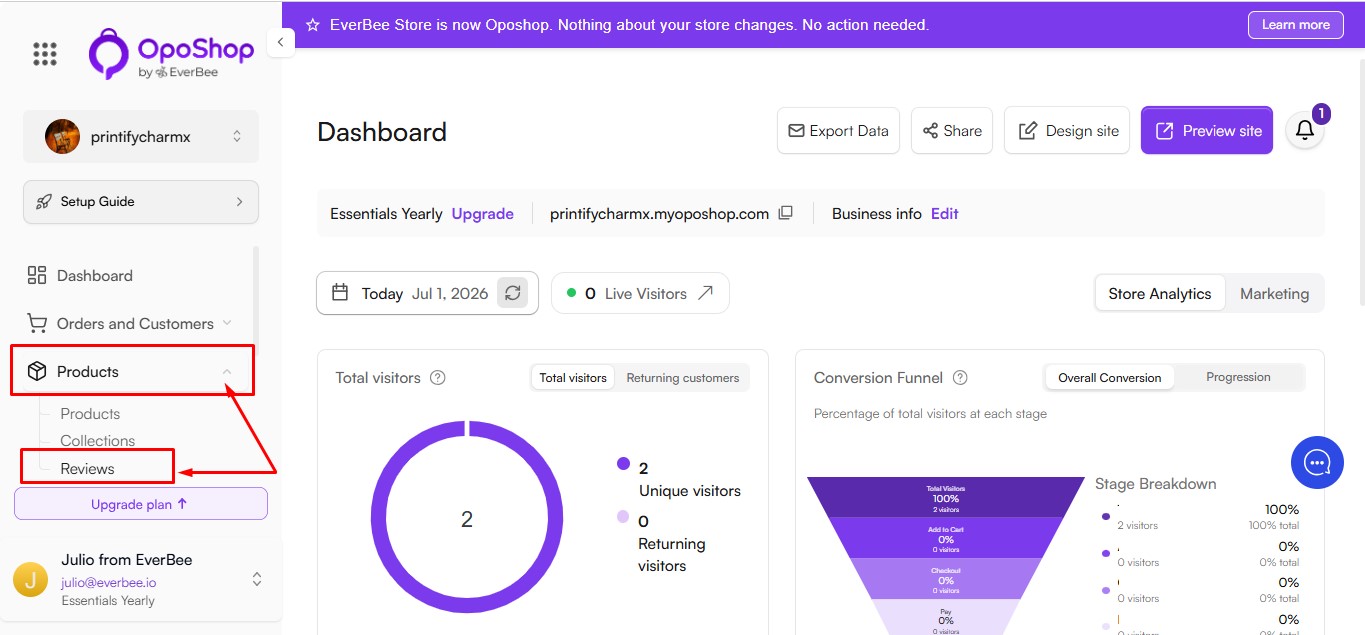
Review Settings
The Review Settings section lets you control how product reviews are collected and displayed on your store.
Available settings include:
- Enable Reviews – Turn product reviews on or off for your store.
- Show in Product Listing Pages – Display the average product rating on your product listing pages.
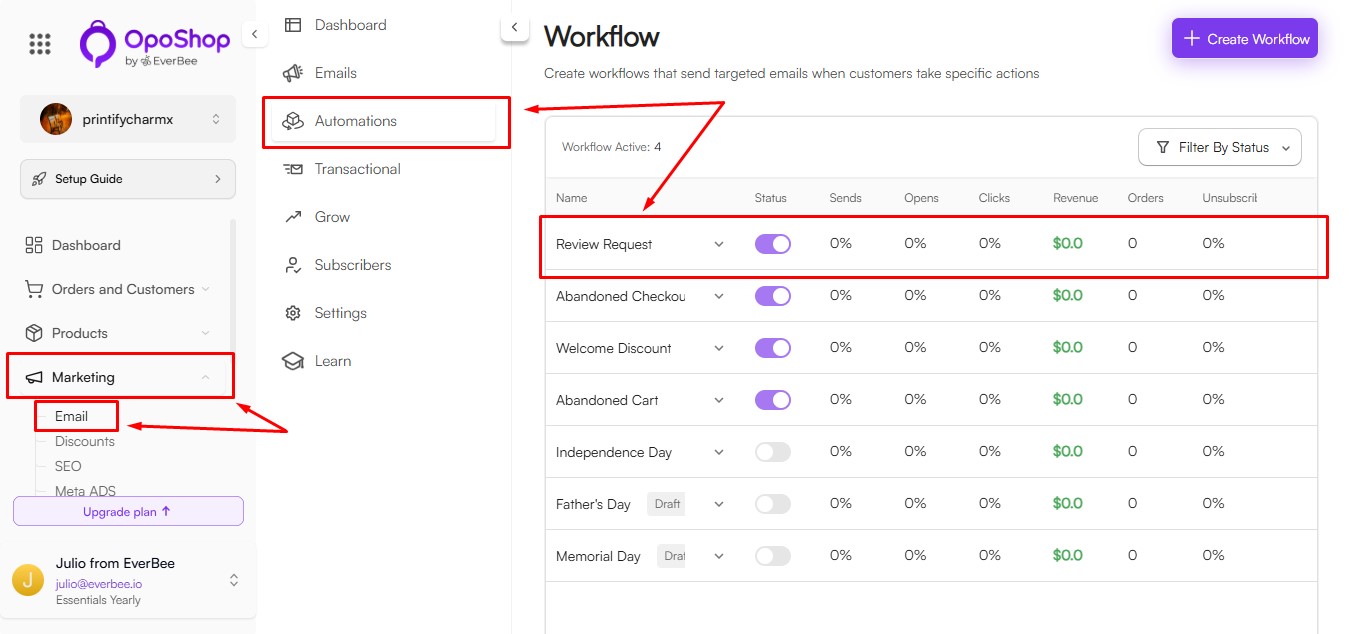
- Send Product Review Emails – Automatically email customers after their order ships, inviting them to leave a review.
- Publish All Reviews by Default – Automatically publish new reviews as soon as they are submitted.
- Hide Reviews Below Rating – Set a minimum star rating (for example, 3 stars) to display on your website. Reviews below the selected rating remain hidden from customers but are still available in the All Reviews section of your admin dashboard.
Note: You can manually publish or hide reviews at any time from the Reviews section in your OpoShop dashboard.
How Customers Can Leave Reviews
Customers can submit reviews in the following ways:
- From the Product Page
Customers can leave a review directly from the product page by following these steps:
- Scroll to the Reviews section.
- Select a star rating.
- Enter their name and email address.
- Optionally, add a photo or video and write a comment.
- Select Submit Review.
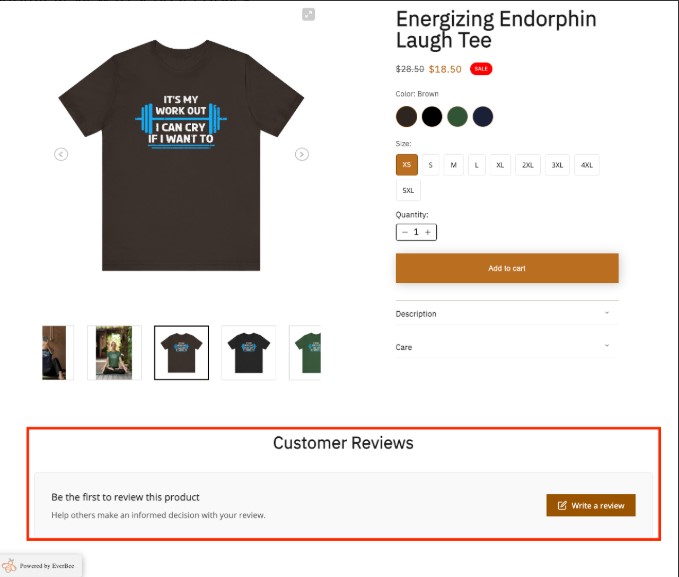
Once the review is approved, or automatically published if enabled, it will appear on the product page.
- From the Review Email
After an order has been shipped, customers receive an email inviting them to review their purchase.
The email displays each purchased product with clickable star ratings. Selecting a product or star rating takes the customer to the product page, where they can complete and submit their review.
If a review has already been submitted for a product, the existing review will be displayed instead.
- From the Orders Page
Customers who are signed in to their account can also leave reviews from the Orders page.
- Go to the Orders page.
- Locate a shipped order.
- Select Leave Review next to the product.
- Add a star rating and write a review in the pop-up window.
- Select Submit Review.
After the review is submitted, the Leave Review button changes to Reviewed.
- Display Reviews on Other Pages
You can showcase customer reviews on pages other than your product pages, such as your homepage or a dedicated testimonials page.
To add the Product Reviews section:
- Go to Designer > Builder.
- Select Add Section.
- Choose Product Reviews and place it anywhere on your page.
If no reviews have been published yet, a placeholder (zero-state) layout will be displayed. Once reviews are published, they will automatically appear in this section.
You can also watch the short tutorial below for a step-by-step walkthrough.