

If you want to accept PayPal payments in your OpoShop, here’s how it works and what’s required.
What You Need to Know
OpoShop supports PayPal as an optional payment processor.
You can choose to accept payments using
- Use Stripe only
- Use PayPal only
- Or enable both Stripe and PayPal
Important: At least one payment processor must be connected for your store to receive payments.
PayPal is not enabled automatically. Each seller must connect their own PayPal account from their store settings. EverBee does not create, manage, or access PayPal accounts on behalf of sellers.
How PayPal Works at Checkout
Once PayPal is connected:
- Customers will see PayPal as a payment option at checkout
- Payments are processed directly through your PayPal account
- Order flow and Printify fulfillment continue to work as usual
If PayPal is not connected, customers will not see it as a checkout option.
How to Connect PayPal
- Go to your OpoShop dashboard.
- Navigate to Store Settings → Payments and tax.
- Select PayPal and connect.
- Log in to your PayPal account and authorize the connection.
- Confirm PayPal is enabled.
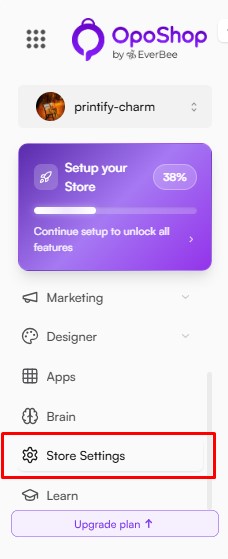
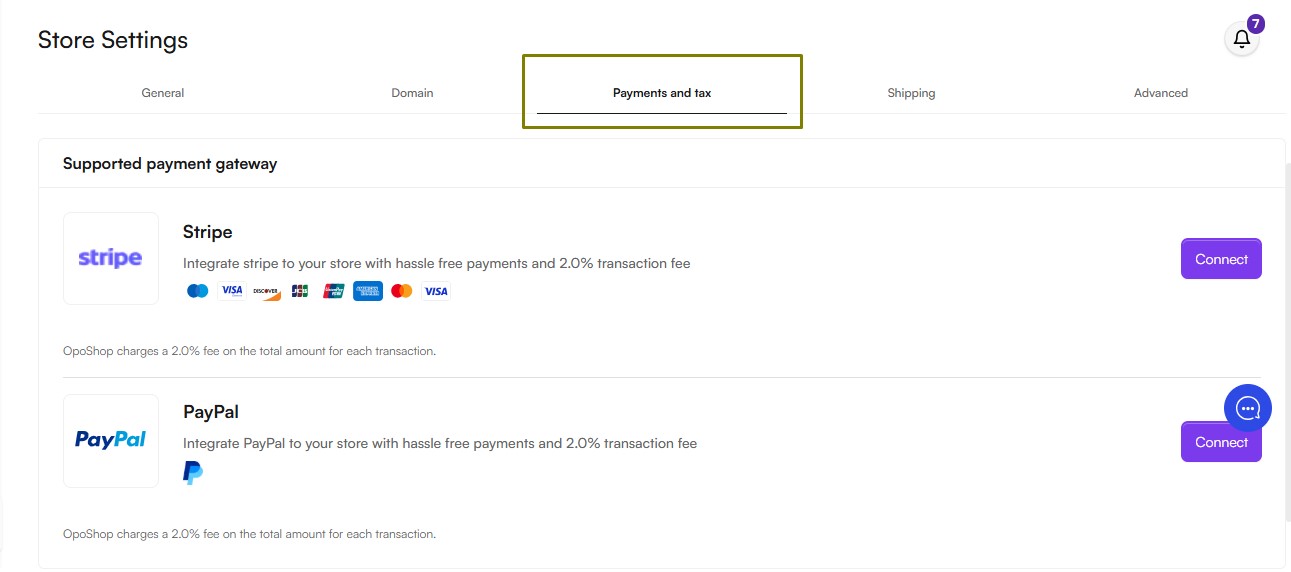
Once your PayPal account is connected, customers will be able to select PayPal as a payment option during checkout.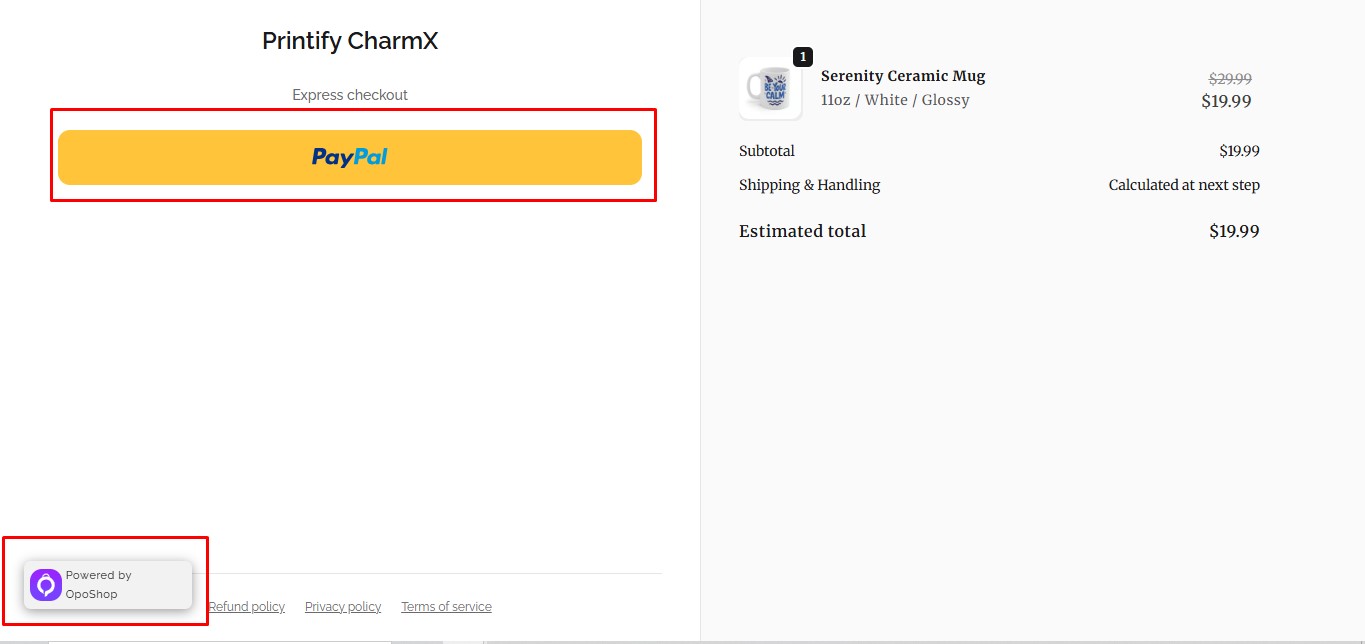
Do I Need PayPal to Sell?
No. PayPal is optional.
If you already have Stripe connected and prefer to continue using Stripe only, no additional setup is required.
Summary
- PayPal is optional and must be connected by the store owner.
- At least one payment gateway (Stripe or PayPal) must be configured to accept customer payments.
- PayPal will only appear as a checkout option after it has been successfully connected.
If you have any questions, our Support team is always happy to help. Contact us at hello@everbee.io or simply send us a message through the support chat.